Command menu (Cmd+K)
Find pages, actions, companies and people fast with Ctrl+K (Cmd+K on Mac).
Updated November 24, 2026
The command menu is a search box that opens on top of any page. Use it to jump to a page, run an action or look up a company or a person without clicking through the menus.
Open the command menu
- Press Ctrl + K (⌘ K on Mac). Press it again to close the menu OR click/tap anywhere outside command menu to close it.
- Or click the search button with the magnifier icon under the logo at the top of the left-hand menu. It shows ⌘ K on Mac.
The shortcut also works while you are typing in a text field.
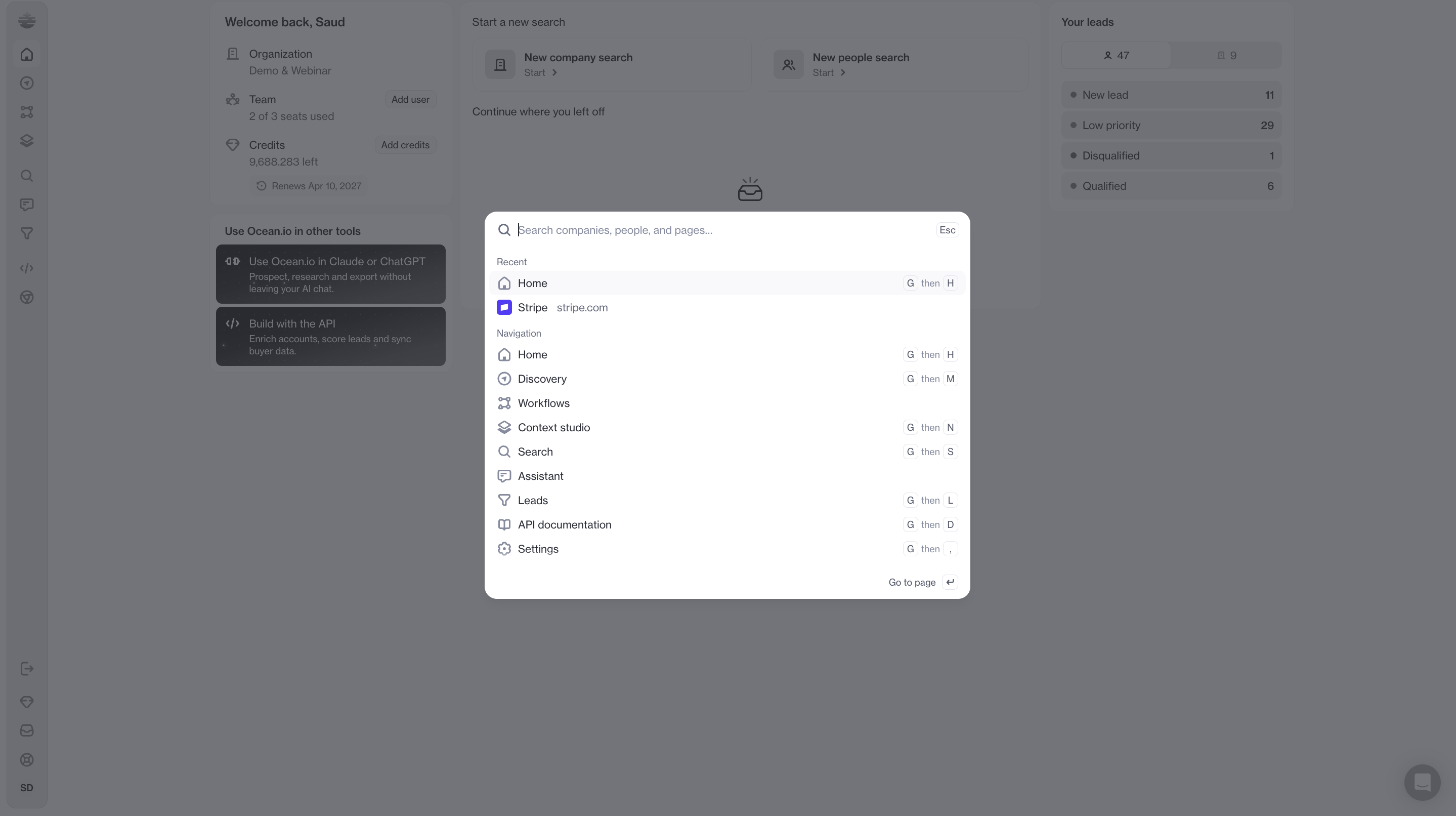
What you see before you type
- Recent: the last five pages, companies and people you picked from the menu. Your recent list is saved to your account, so it shows on your other devices too.
- Navigation: the main pages: Home, Discovery, Workflows, Context studio, Search, Assistant, Leads, API documentation and Settings.
- Actions: things you can run right away. The list depends on the page you are on. On a search page it includes actions such as saving the tab or clearing all filters. On every page it includes Pin side menu (or Unpin side menu), Switch to dark mode (or Switch to light mode), Open Help, Keyboard shortcuts and Open Activities. If your account uses the newer credit system, it also includes Open Credits.
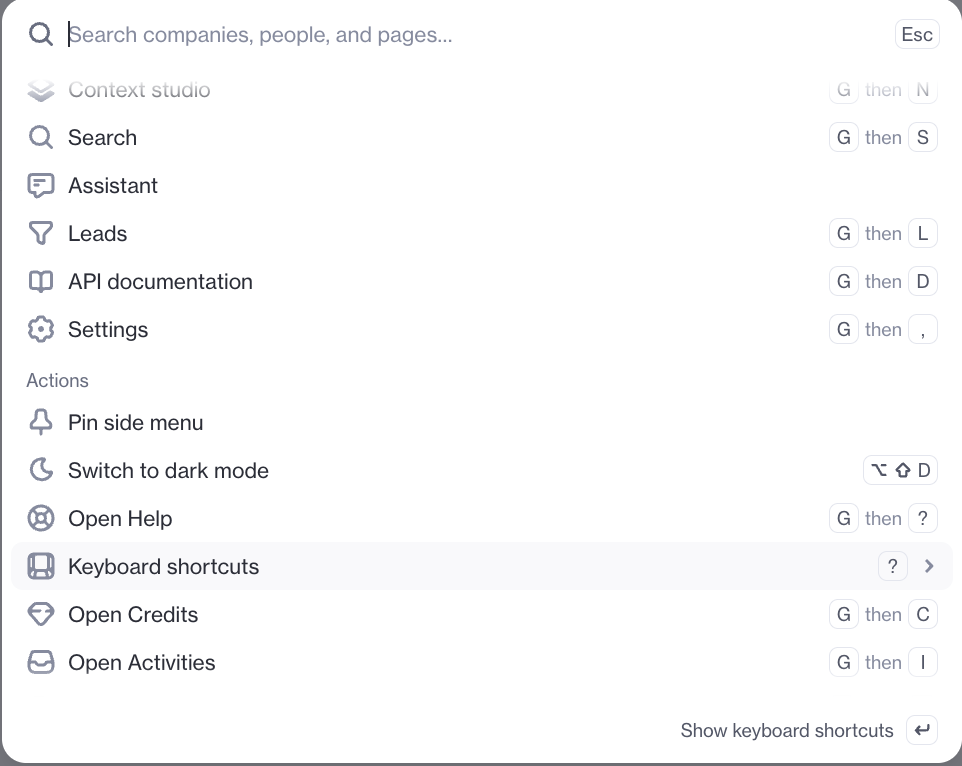
What you see when you type
Start typing and the menu filters everything at once. Results come in groups:
- Navigation: pages that match, including the Settings pages you can open and the pricing page. If your account has the Segmentation add-on, Create workflow and Create segmentation show up here too.
- Actions: actions that match.
- Settings: sections inside the Settings pages, so you can go straight to the setting you want.
- API documentation: API endpoints that match. This group only shows while you are on an API documentation page. Pick one to open its documentation page.
- Companies: companies that match the name or domain you typed.
- People: people that match the name you typed.
Type at least 2 characters to look up companies and people. Every group except Actions shows up to 5 matches. Pick a company or a person to open its quickview on top of the page you are on.
Move around and pick a result
- ↑ / ↓ move up and down the list.
- Enter picks the highlighted result. The bottom right of the menu tells you what Enter will do, for example Go to page, Open company or Run action.
- Esc closes the menu. If you picked a list inside the menu, such as the keyboard shortcuts, Esc first takes you back. If you opened the list with ?, Esc closes the menu.
See the keyboard shortcuts
Press ? or pick Keyboard shortcuts under Actions. The menu then shows every shortcut with a search box. Shortcuts for other pages are greyed out. Press Backspace in an empty search box to go back to all results. For the full list, see Keyboard Shortcuts.
Search the API documentation
On an API documentation page the menu opens on the list of documentation pages. Type the name of an endpoint, for example enrich, to filter the list and jump to it fast. This also works when you are not signed in.