Customizable Export Value For CRMs
Read how you can change the value of a particular CRM field for every export
Updated November 24, 2026
Note: This feature does not work at the moment. You can still enter a value on the setup page and in the export dialog, but the value is not written to your CRM records. Please do not rely on it until this note is removed.
When exporting leads to your CRM, you might want to include a note or value that changes from one export to another — for example, the name of a campaign, a specific list, or an internal tag. The Customizable Export Value is meant for that.
Why Use a Customizable Export Value?
This feature is meant to let you add a unique value to each export.
The idea is to:
- Add context to your exports, such as why you exported the selected companies.
- Include internal references, like campaign names or tags.
- Trigger specific automations or workflows in your CRM based on the value.
💡 Example: You might export a list with the value
ListAmanda20to indicate that these companies came from Amanda’s list. In your CRM, the value would then be used to group, filter, or trigger automation rules.
How It Works
Choose where to send the value
During your CRM integration setup, open the Map Ocean properties step and find the Custom export value card. Pick the CRM property where this customizable export value should be stored. To open the setup again later, go to Settings → Integrations, click Connected next to your CRM and choose Configure.

Set your export value
Each time you export to your CRM, you can enter a new value in the Custom export property field of the export dialog — for example, SpringCampaign2025 or FollowUpList01.
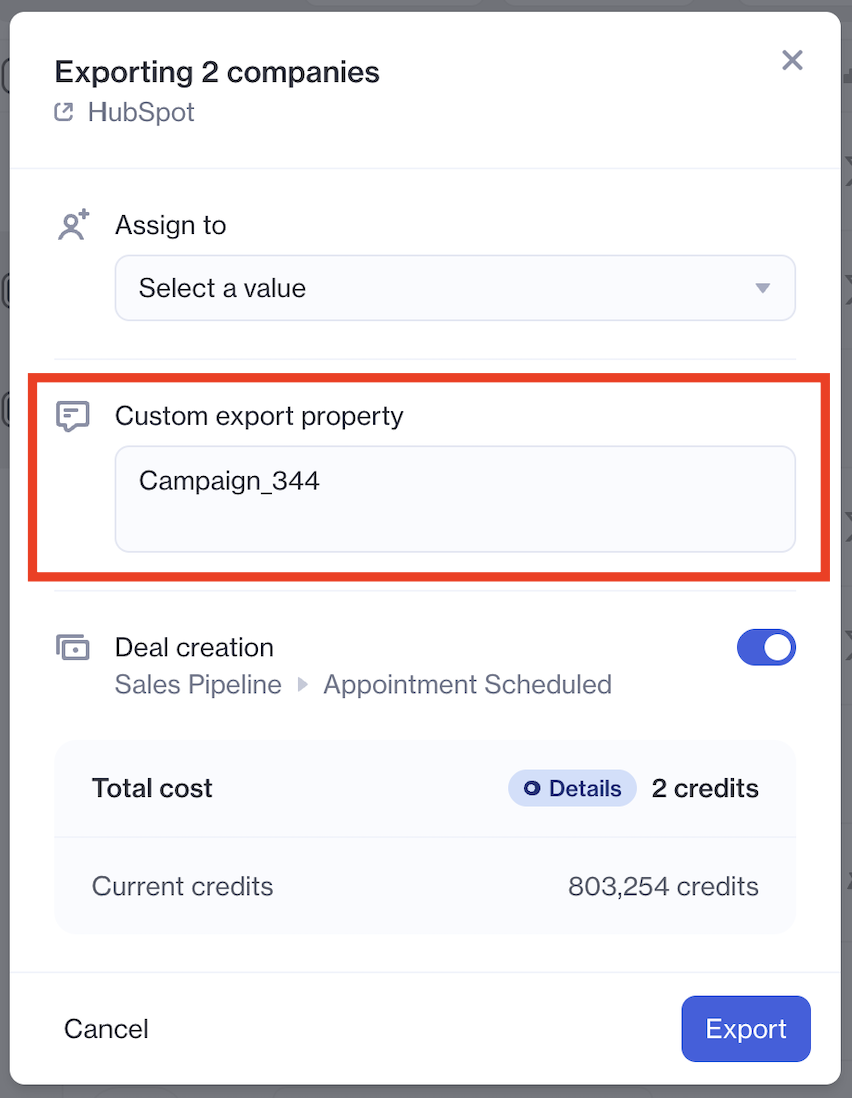
The value is saved, but it is not added to the selected field on your CRM records yet.