How to Exclude Companies & People in Ocean.io
Hide companies and people from your search, workflows and recommendations for everyone in your organization.
Updated November 24, 2026
Exclusion lists let your organization hide companies and people for good. Add a company or a person once and it stays out of your results.
What exclusion lists do
Your organization has two lists: one for companies and one for people. When the lists are switched on, everything on them is left out of search, workflows and recommendations. This applies to everyone in your organization.
Excluding a company also hides all of its people, so you don’t need to add them separately.
Use them for customers you already work with, competitors, partners or anyone you never want to contact.
Switch the lists on
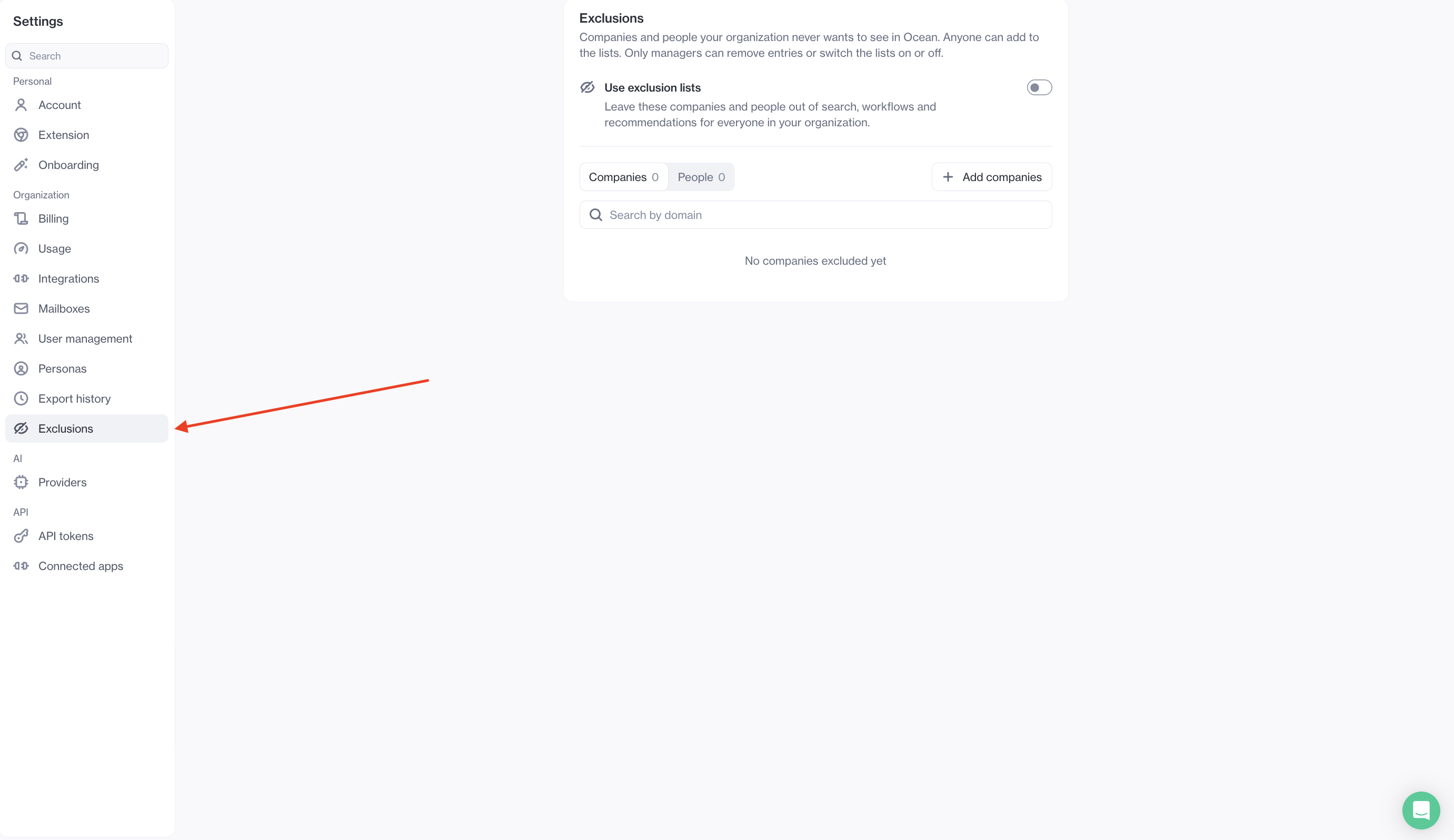
Go to Settings (bottom-left corner of the screen) and open Exclusions.
Switch on Use exclusion lists.
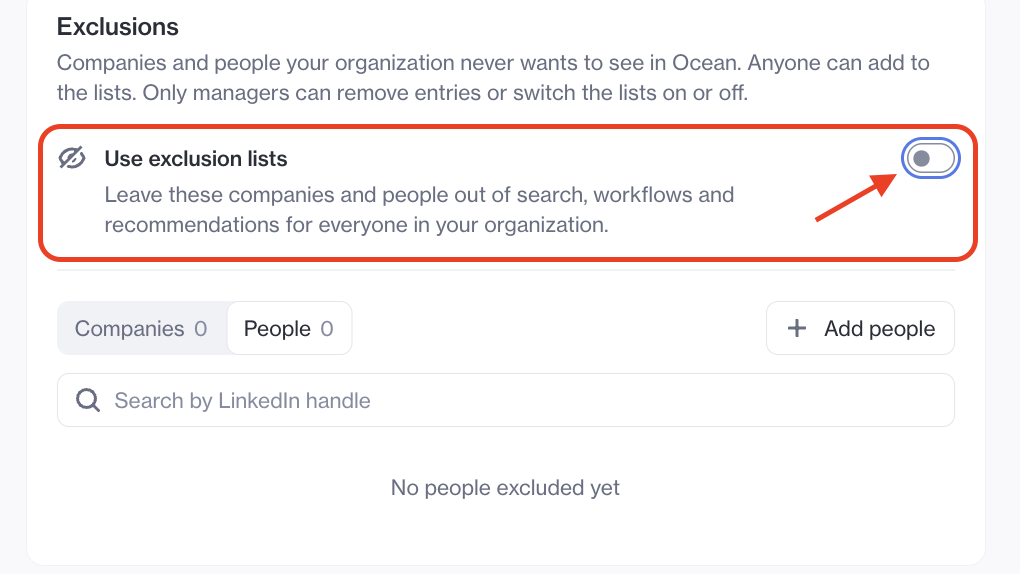
The lists are off by default. Entries you add while the lists are off are saved but still show in your results until you switch the lists on.
Who can do what
- Anyone in your organization can add companies and people.
- Managers can also remove entries, use Clear all and switch the lists on or off.
Add companies or people
- Go to Settings > Exclusions.
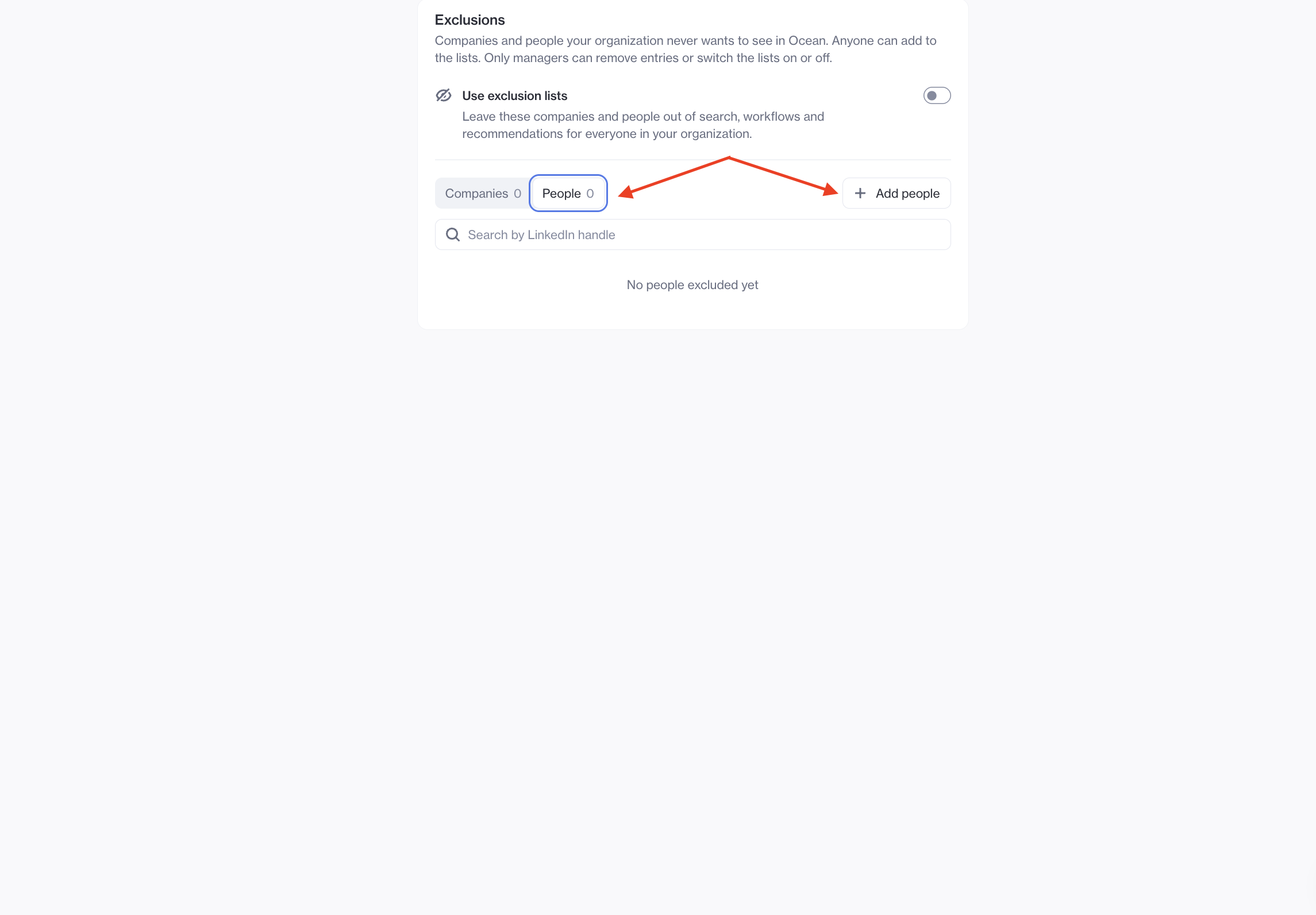
- Choose the Companies or People tab.
- Click Add companies or Add people.
- Choose Paste a list or Upload CSV.
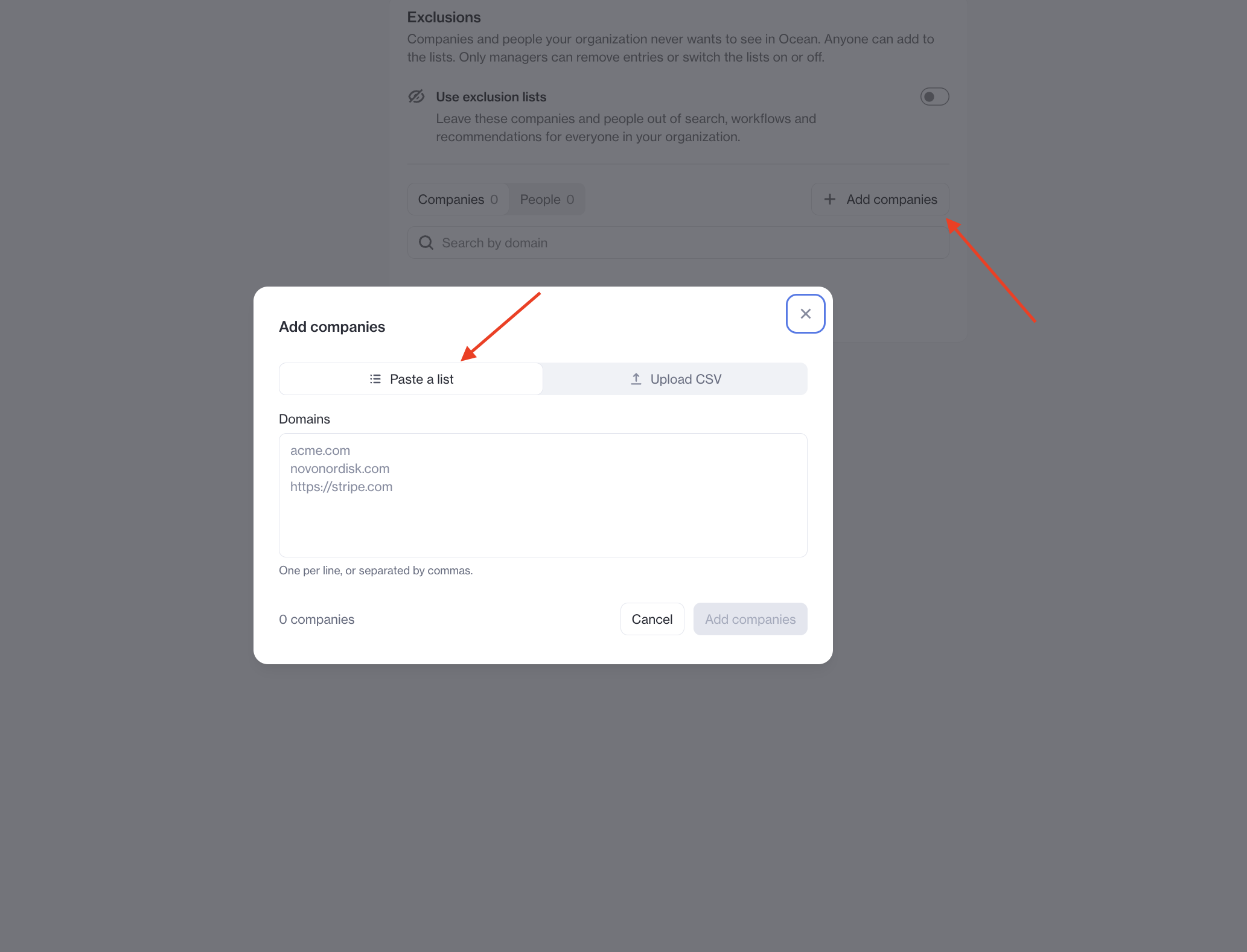
- Check the number at the bottom of the window. Then click the button next to Cancel. It starts with Add.
Companies are added by domain, for example acme.com. Put one domain on each line or separate them with commas. Website addresses that start with https:// work too. In a CSV file, use a column named Domain or Website. You can also put the domains in the first column.
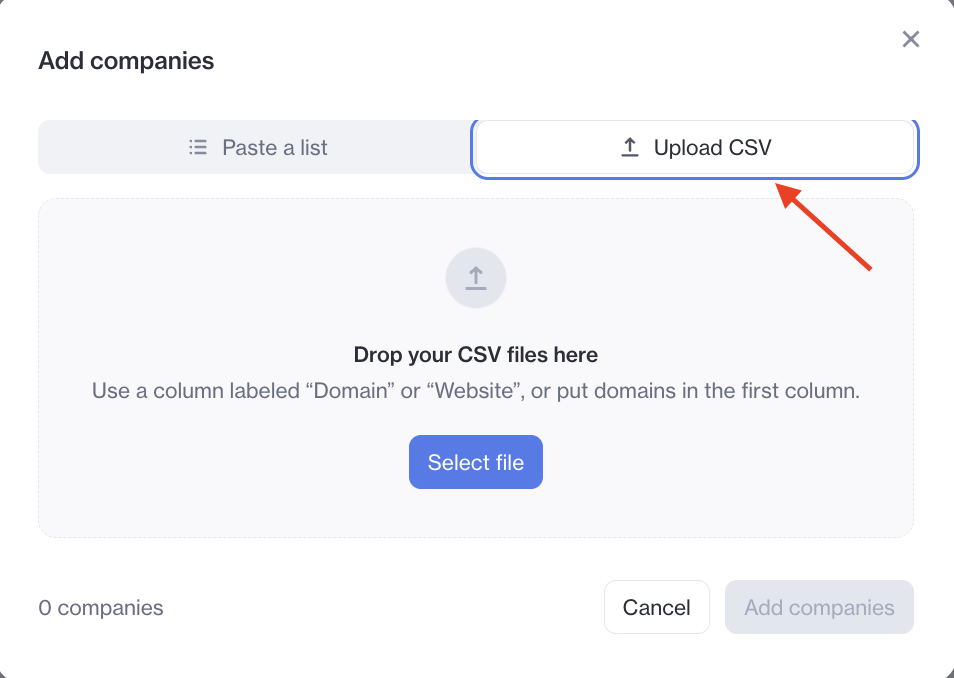
People are added by LinkedIn profile. Paste profile URLs or handles, one on each line or separated by commas. In a CSV file, use a column named LinkedIn. You can also put the profile URLs in the first column.
If some entries cannot be read, the window tells you how many will be skipped. The rest are added.
Lists of more than 10,000 entries are added in the background. A progress bar shows how far it is. It keeps going if you leave the page.
Exclude results from a search
You can also add companies and people straight from your search results.
- Select the rows in your results.
- Click Exclude in the action bar.
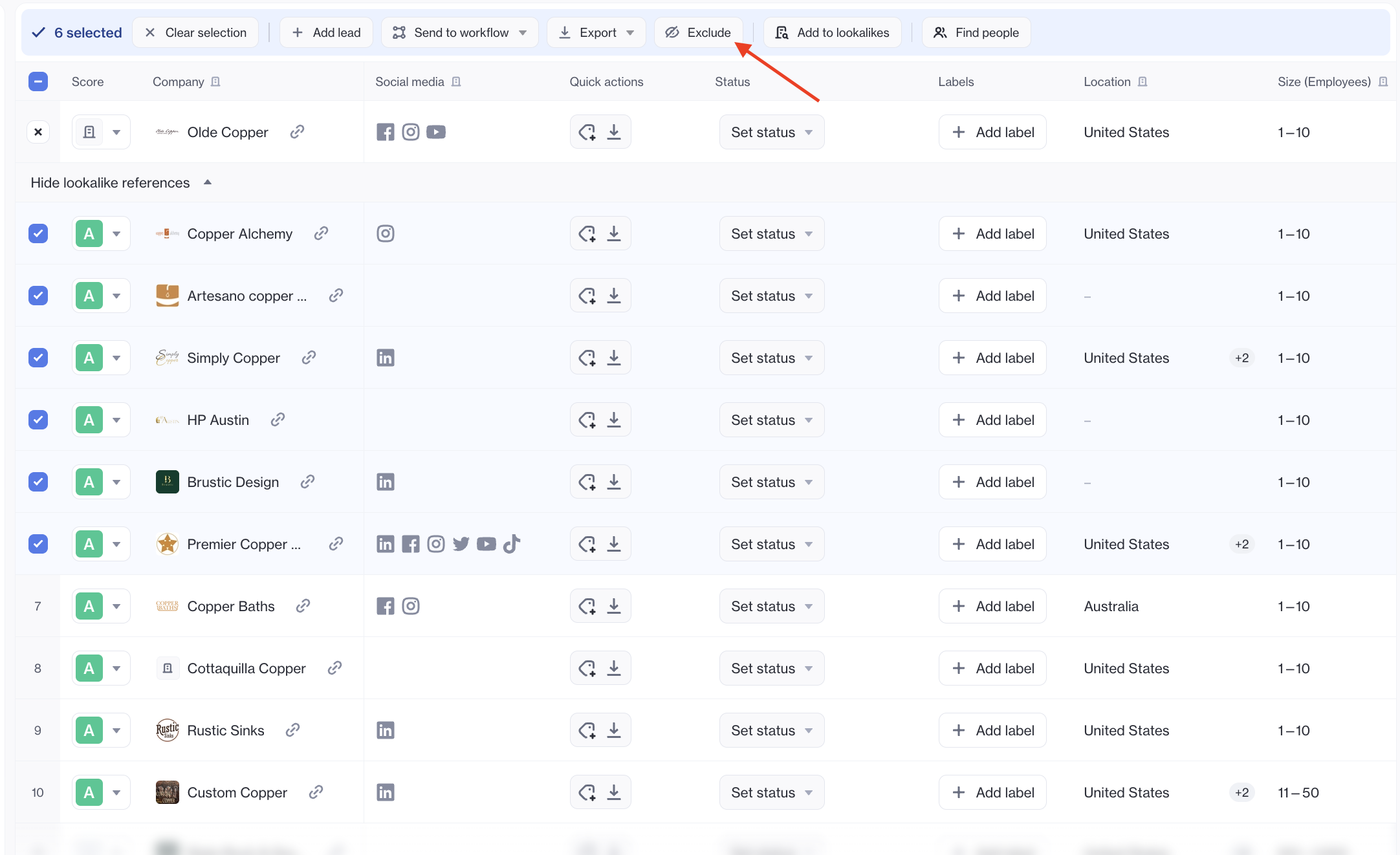
- Confirm in the window that opens.
If the lists are off and you are a manager, the window has a Turn on exclusions switch so you can switch them on at the same time.
Note: On current plans, results you have not loaded yet use credits when you exclude them, the same as loading them. Results you have already loaded cost nothing extra. Adding by paste or CSV never uses credits.
Find, remove or clear entries
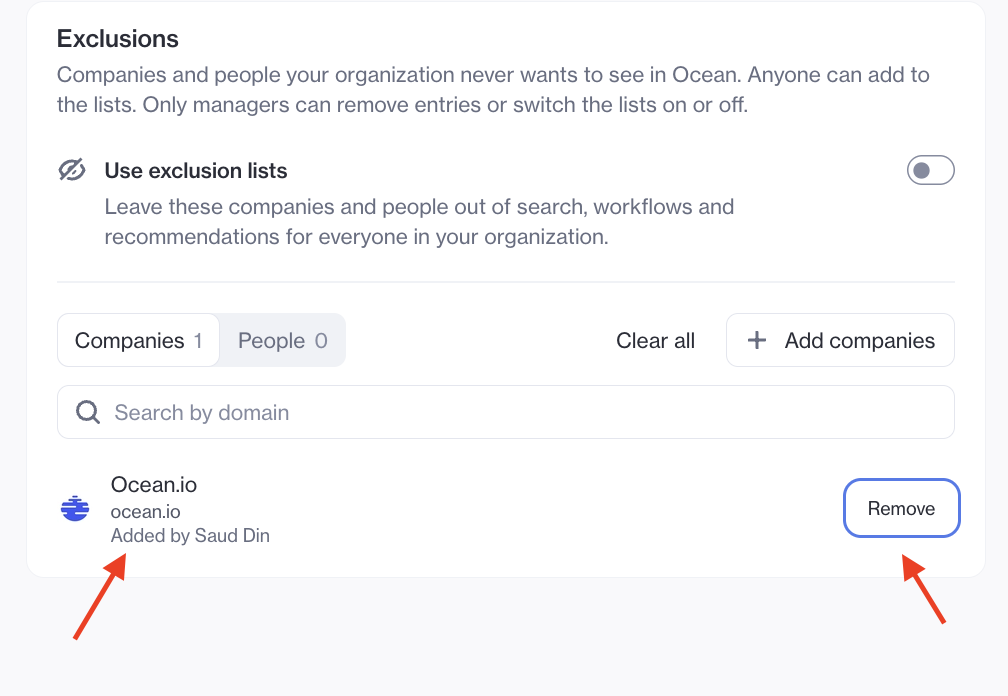
- Use the search box above the list to find a domain or a LinkedIn handle.
- Managers click Remove next to an entry to take it off the list. Anyone who is not a manager can ask a manager to do it.
- Managers click Clear all to empty the list for the tab they are on. You must confirm. It cannot be undone.
Entries show who added them.
When you look up an excluded company or person
If you type a company or a person into the search filters and it is on your list, you see a note that it is on your organization's exclusion list and hidden from results. The note has a Manage exclusions link that opens this page.
Exclusions vs. Net new
Exclusions and the Net new search option both hide records, but they work differently.
- Net new is an option you turn on in a search. It hides companies and people you have already exported, added to leads or have in your CRM. Ocean.io works this out from your activity.
- Exclusions are lists your organization builds on purpose. They hide exactly the companies and people you add, whether or not you have worked with them before. While switched on, they apply to everyone in your organization.
Use Net new to avoid prospecting the same accounts twice. Use exclusions for accounts your organization should never see.
List size
Each list holds up to 10,000 entries by default. If a list is full, remove entries to make room or contact [email protected] to ask for a higher limit.
Tips
- Build your lists first, then switch Use exclusion lists on once they are ready.
- Use paste or CSV for large lists. It never uses credits.
- If an excluded company or person still appears, ask a manager to check that Use exclusion lists is switched on.