Installing the Pipedrive Integration
Connect Ocean.io to Pipedrive and supercharge your outreach.
Updated November 24, 2026
Connecting Ocean.io to Pipedrive takes just a few clicks. Once connected, you can start exporting companies and contacts directly into Pipedrive right away.
Start the setup
Navigate to Profile → Integrations and click "Connect" next to Pipedrive.
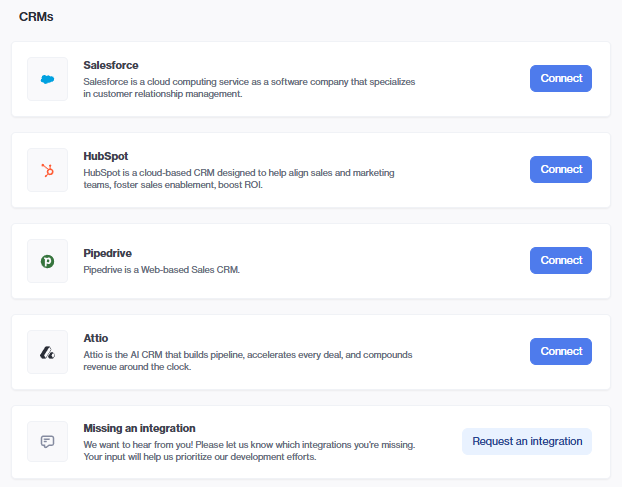
Connect your Pipedrive account
You will be taken to Pipedrive where you need to select which account to link to Ocean.io. Select the correct account and click "Choose Account" to complete the connection.
After connecting, you will be automatically redirected to the configuration page. You can cancel out of the configuration at any point, your integration is already live and you can start exporting straight away. We recommend browsing through the configuration steps and making any adjustments that make sense for your setup.
💡 You can always come back to configure later via Profile → Integrations → click "Connected" next to Pipedrive → Configure. You can also remove the integration from the same menu.
Read more about the accesses required in our CRM data processing FAQ.
The setup has 7 steps. Use Next to move on. The last step has Finish.
Step 1 — Map company properties
Ocean.io automatically pre-maps the most important company fields to their Pipedrive equivalents. You can review and adjust these mappings at any time.
Any company field that is not mapped will be ignored during export, no data will be lost, it simply won't be sent to Pipedrive.
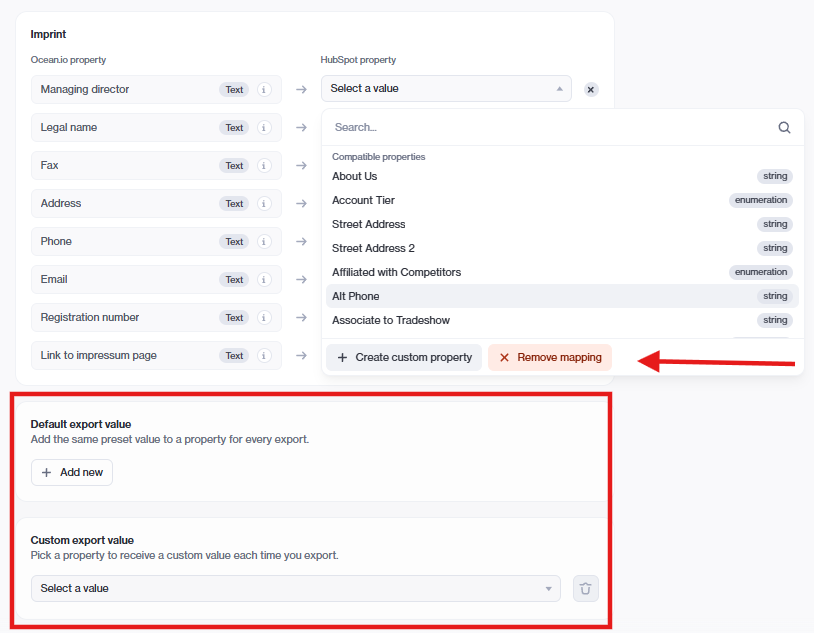
If the Pipedrive property you need does not exist yet, you can create a new custom property directly from the mapping dropdown by clicking "+ Create custom property". To remove an existing mapping, click "Remove mapping" next to the field.
Each mapped row also has a write rule, in the Existing values column. It tells the export what to do when the record already exists in Pipedrive:
- Always overwrite: replaces values that differ from the exported value
- Write if empty: fills the field only when it's empty. This is the default
- Never write: leaves the field out of exports
A new record gets every value except the fields set to Never write. The fields that identify a record, such as a company's name and website and a contact's name and email, are always Write if empty. They are greyed out and can't be changed. Only managers can change a write rule. The rules apply to every export, including exports from workflows.
Step 2 — Map person properties
The same applies for contact fields. Ocean.io automatically pre-maps the most important contact fields to their Pipedrive equivalents. Review and adjust as needed. Each row has the same write rule.
Any contact field that is not mapped will be ignored during export.
If the Pipedrive property you need does not exist yet, you can create a new custom property directly from the mapping dropdown by clicking "+ Create custom property". To remove an existing mapping, click "Remove mapping" next to the field.
Step 3 — Map Ocean properties
Choose where ocean.io writes its own values in Pipedrive.
The Context columns card sets up five columns for exports of companies from Recommendations or from a segment's lookalikes: Ocean score, Lead score, Segment score, Segment and Matched signals. The card only shows if Segmentation is turned on for your organization. To learn what each score means, read Score definitions.
For each column, pick an existing Pipedrive field of a matching type. You can also choose a new field and ocean.io creates it for you. Each column also has a write rule. For these columns the default is Always overwrite, so a new export replaces the old score.
When you export companies, turn on Add Context columns in the export dialog to send them. Only managers can set up the fields. Everyone else sees "Ask a manager to set them up in integration settings."
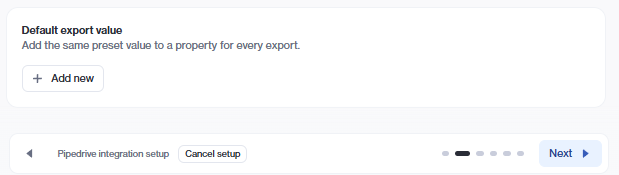
This page can also show Default export value and Custom export value cards. ocean.io saves what you enter there but does not write it to your records yet, so you can leave them empty.
Step 4 — Deals
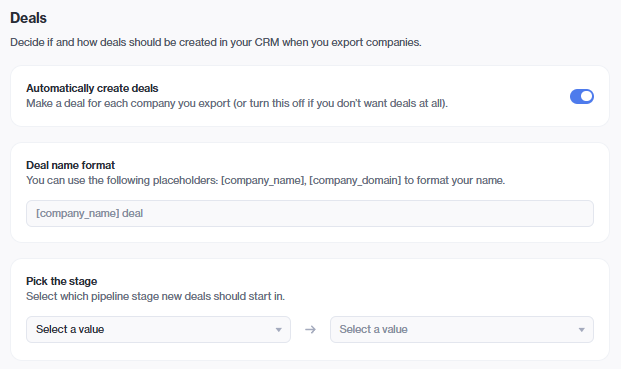
Decide if and how deals should be created in Pipedrive when you export companies.
- Automatically create deals — toggle this on to automatically create a deal for each company you export. Toggle it off if you do not want deals to be created at all
- Deal name format — customize the deal name using
[company_name]or[company_domain]placeholders. The default is[company_name] deal - Pick the stage — select which pipeline and stage new deals should start in
⚠️ When deal creation is turned on, Ocean.io will always create a new deal for every export, even if a deal already exists for that company in your pipeline. This is different from company exports, where Ocean.io automatically prevents duplicates.
💡 Even if deal creation is turned on here, you can always disable it on a case by case basis directly from the export dialog when exporting on the Ocean.io platform.
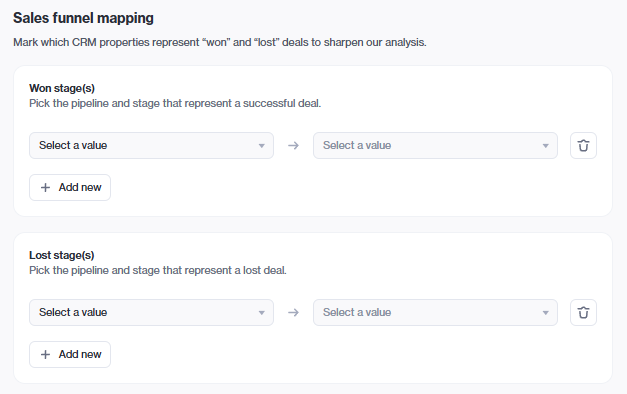
Step 5 — Sales funnel mapping
Mark which pipeline stages in Pipedrive represent "Won" and "Lost" deals. This is used by Ocean.io to accurately analyze your CRM data and power segmentation.
💡 In Pipedrive, most companies use the default "Won" and "Lost" statuses on deals. If you're one of these companies, you don't need to map any stages here, simply continue to the next step.
If you do place Won/Lost deals into specific pipelines, map them here:
- Won stage(s) — select the pipeline and stage that represent a successful deal. Click "+ Add new" to add multiple won stages
- Lost stage(s) — select the pipeline and stage that represent a lost deal. Click "+ Add new" to add multiple lost stages
- Open stage(s): optional. Pick the stages that represent a deal still in play. Once you map a pipeline here, its other stages count as disqualified instead of open
⚠️ Without sales funnel mapping, the Deal status filter inside Ocean.io will not work correctly.
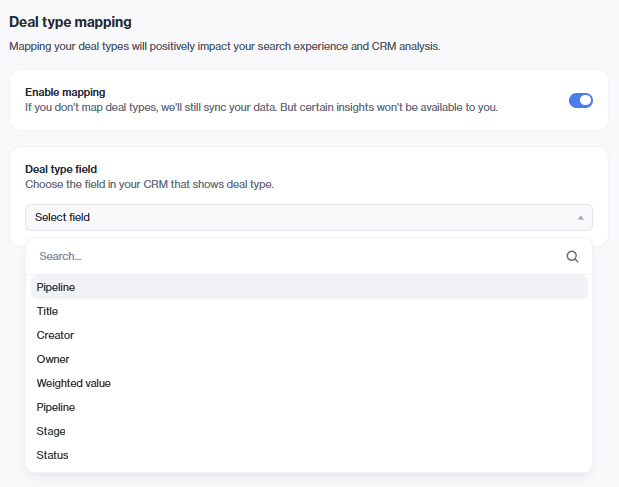
Step 6 — Deal type mapping
Mapping your deal types will positively impact your search experience and CRM analysis.
- Enable mapping — toggle this on to enable deal type mapping. If left off, Ocean.io will still sync your data but certain insights won't be available
- Deal type field — once enabled, select the field in your Pipedrive that represents deal type
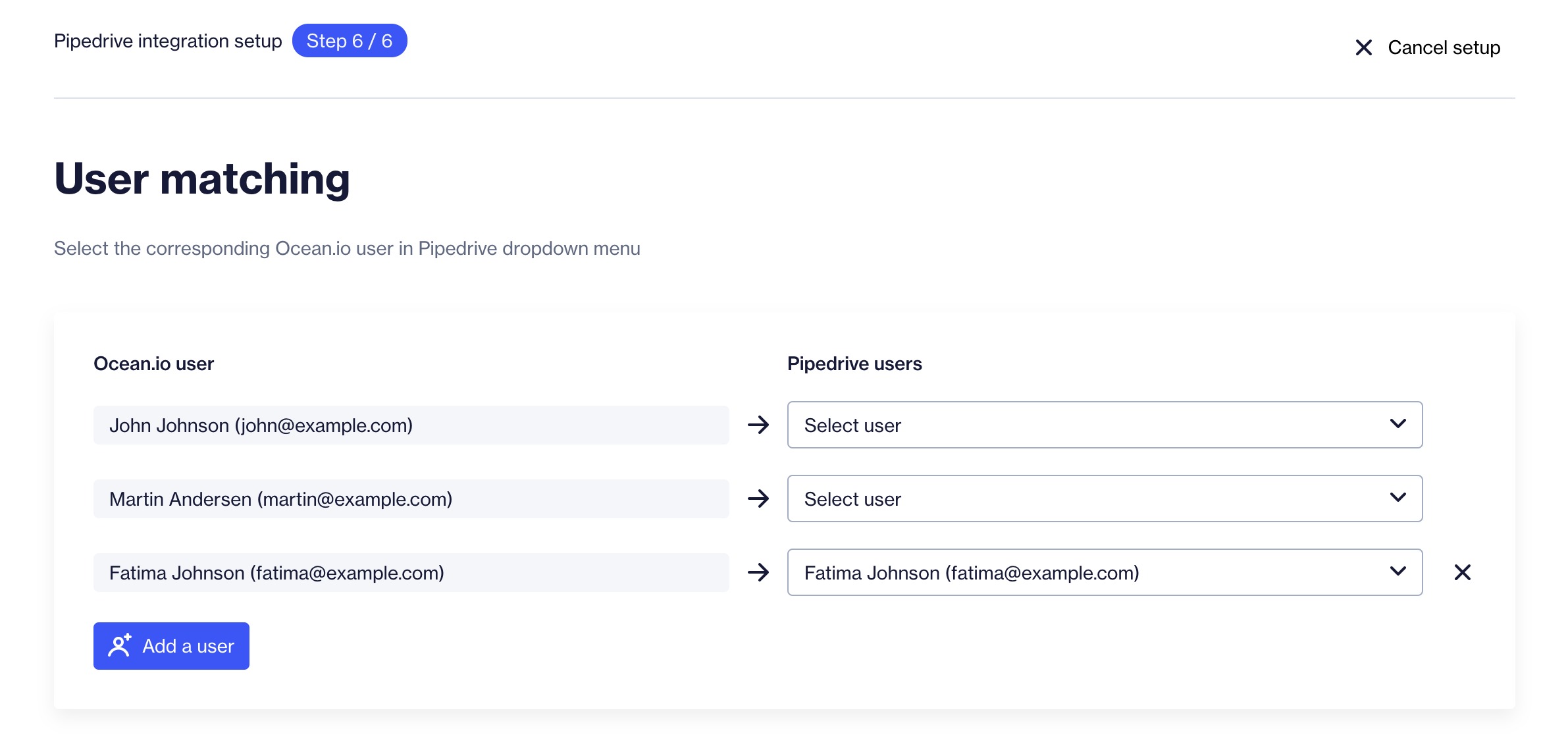
Step 7 — User matching
Match your Ocean.io users to their corresponding Pipedrive users. This ensures that exports and activities are attributed to the right person in your CRM.
- Ocean.io users are listed on the left, select their corresponding Pipedrive user from the dropdown on the right
- Need to add a user that isn't listed? Click "Add user" to invite them to your Ocean.io account
⚠️ Without user matching, the Owner and Activity filters inside Ocean.io will not work correctly.
Note: When exporting from Ocean.io to Pipedrive, Ocean.io checks whether the company (by domain, then by name) or contact (by email) already exists in your Pipedrive account. If it does, no duplicate is created. The existing record is updated and the write rules from steps 1 to 3 apply. By default only empty fields are filled. A manager can change this for each field. It does not change the owner, unless a workflow step is set to reassign it.
Want even more power? Unlock CRM filters with the Bi-directional CRM Integration add-on
With the Bi-directional CRM Integration add-on you can unlock CRM filters directly inside Ocean.io, including Deal status, Activity, and Owner. To get the most out of these filters, make sure the configuration steps above are completed, otherwise the filters won't reflect accurate data.
Without the add-on, existing CRM data is not charged or processed, it is simply ignored.
Interested in the add-on? Reach out to us at [email protected] to learn more.